Recently updated in Denticon
The newest and most recently changed Denticon help articles, with dates from the Planet DDS help center.
- Updated
- Our office wants Denticon to begin generating our monthly statements. What details need to be provided?Updated
Generating Periodic Statements
- How can we stop Automated Campaign messages from sending for a single office while keeping the feature on for all other offices?Updated
Help Menu and General Info
- AutoEligibility: How Do I Use the AutoEligibility Feature?Updated
AutoEligibility
- We're unable to edit Progress Notes on the same day they were created. Why is this happening?Updated
Progress Notes
- Unable to scan documents into Denticon after installing the Dynamsoft Service integration.Updated
Scanning Problems
- Updated
- DTX Studio bridge showing DOB 01/01/1901New
Denticon Bridge
- Why Is the Get Help Option Grayed Out?New
Group Membership
- How to Submit the E-Statement Activation Form to DenticonUpdated
Denticon Statement Services
- Updated
- How are the teeth arranged on the charting module?Updated
Restorative Charting
Denticon tips and tricks
Practical Denticon tips from Desha, each with the help article it comes from.
- 1
Attach insurance before posting treatment
In the Ledger's Bill column, D means a procedure can be claimed to one plan, and DD means primary and secondary. If insurance, or a secondary plan, is attached after procedures are posted, those procedures won't claim correctly, and the secondary claim won't be created automatically. To find records whose billing order needs correcting, run Reports > Insurance Reports > Unbilled Report Due to No Insurance.
Sources: Help article 1·Help article 2
- 2
Print a walkout from the schedule
Right-click the patient's appointment on the schedule, choose Print, then Walkout Report. If the next appointment is already in the Scheduler, it prints on the walkout, with the day of the week and the office name, address, and phone number. That's handy when the next visit is at a different location.
Sources: Help article 1·Help article 2
- 3
Progress notes can only be edited the same day
A progress note can be edited only on the day it was entered. After that day, it can be stricken through and the information re-entered. In a multi-location organization, edit same-day notes from the office where they were entered. Signing a note also locks it.
Sources: Help article 1·Help article 2
- 4
Search inactive patients before adding one
Duplicate patient records can't be merged into one, so before adding a patient, search with "Include Inactive Patients" checked on the Patient / Search Patient screen. If a duplicate does get created, inactivate it rather than delete it: click Edit in the Patient Information area, clear the Active checkbox, and click Save.
Source: Planet DDS help article
- 5
Update statement dates after printing
Run Update Statement Dates only after statements are generated and printed. Statements show only the transactions entered since the Last Statement Date, and procedures dated on or before that date can no longer be edited or deleted.
Sources: Help article 1·Help article 2
- 6
Use a User View to move appointments between providers
You can drag and drop, copy and paste, or cut and paste an appointment into another provider's column only while the Scheduler is on a User View (Scheduler View), set up under Setup > Scheduler > Scheduler Views. If moving suddenly stops working, check that the Scheduler hasn't been switched to a Provider View.
Source: Planet DDS help article
- 7
Resend a claim without rebuilding it
To resend an electronic claim, click the claim's date on the ledger, then click Recreate E-Claim. It goes to Utilities / Batch Claims Processing, ready to send with the Transmit Claims button. For a paper copy to mail, open the claim the same way and click Direct Print.
Sources: Help article 1·Help article 2
- 8
Patient, Responsible Party, and Subscriber are different roles
The patient receives the treatment. The Responsible Party promises to pay for the whole account and receives the statement. The subscriber is the insurance policyholder named on the claim. Each account has exactly one Responsible Party, but account members can have different plans and subscribers, or be cash patients.
Source: Planet DDS help article
Track record
- 95%
- Collection rate across multi-location operations
- 5 states
- Multi-site dental operations managed across locations in 5 states
- Month one
- ROI delivery within the opening month for new practice launches
- First
- First-to-market AI training assistant for dental software: DentiBot AI
- Built
- Developed a proprietary AI labor management tool
Core expertise
- Multi-site operations leadership
- Enterprise software implementation (Denticon expert-level)
- AI product development and innovation
- P&L management and budget control
- Staff training and development at scale
- Healthcare compliance (HIPAA)
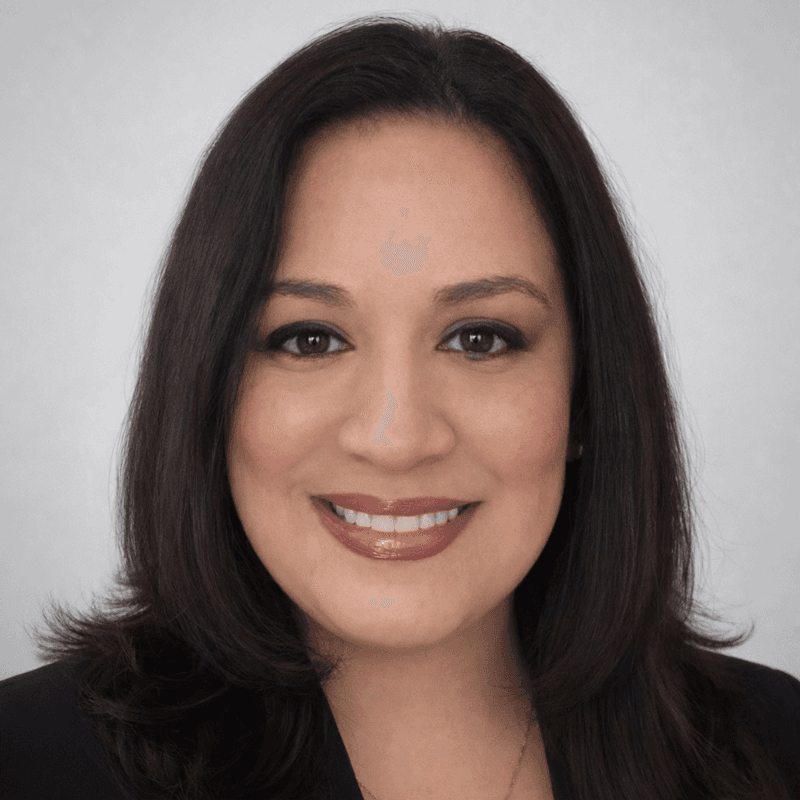
About Desha
Desha Y Grice
PMS System Administrator | Dental Practice Technology | Denticon Implementation
Regional Operations and Training Leader with proven expertise managing multi-site dental operations across locations in 5 states. Trained dental professionals on Denticon implementation and optimization.
Creator of DentiBot AI, the first AI-powered training assistant specifically designed for Denticon software, filling a critical market gap by providing 24/7 instant answers to staff questions.
Specialized in scalable training program development, change management, and building high-performing teams that consistently exceed operational and financial targets across $3-5M revenue dental practices.
For conversations about Denticon training, dental practice technology, or DentiBot AI.